Locations
You add, edit, archive and reactivate the business's locations. Each one has its digital menu and a unique identifier.
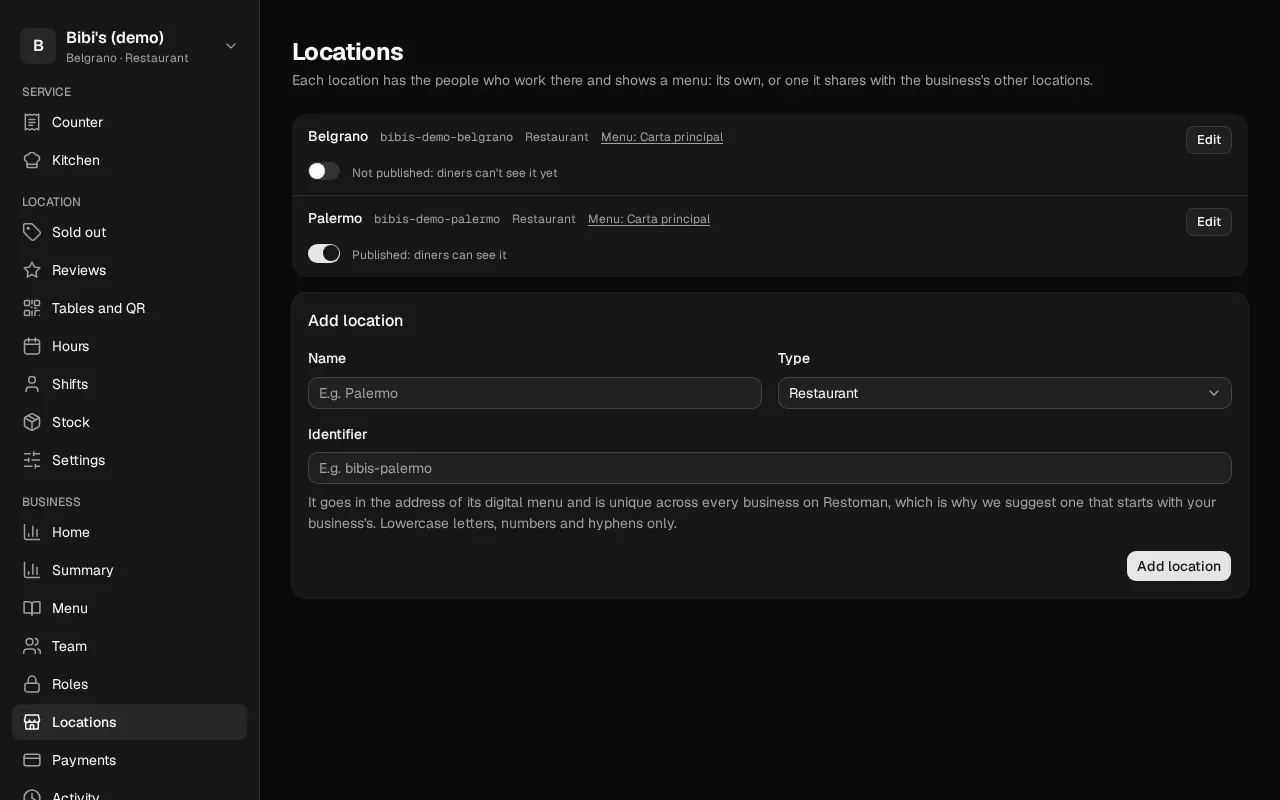
Each location has the people who work there and shows a menu: its own, or one it shares with the business's other locations. In Locations each person sees the locations they can reach.
Who can change them: the owner and the admins. The rest of the team sees them read-only.
Add a location
- In Locations, tap Add location at the top right.
- Enter the Name (for example, Palermo).
- Choose the Type: Restaurant or Food hall or venue.
- Check the Identifier. We suggest one that starts with your business's, such as
bibis-palermo; you can change it. - Tap Add location in the window.
Each new restaurant comes with its own menu, empty.
A restaurant's menu
Each restaurant shows Menu: and the name of the one it serves; tap it to edit it. Several locations can serve the same menu: a change to it shows at all of them.
To have it serve another one, tap Change beside it, choose the menu and tap Use this menu. If a restaurant serves none yet, it says Choose a menu instead. Only active menus are offered. The owner, the admins and anyone with a custom role that has "Product catalog: Edit" can do it. What the location had sold out stays sold out.
Each location's screens
Tap a location's name in the list to go to its screens. At the top of the left sidebar, under the business's name, is the location you're in. Tap it to choose another; Manage locations brings you here. Below it are its screens, the ones your role lets you open: Kitchen, the screen for the kitchen's iPad; Sold out, what can't be ordered at that location today; Tables and QR, its tables by section, each with its QR code; and Hours, when it's open. A venue has no Kitchen or Sold out. The dashboard remembers the last location you opened.
Publish the menu
A new location can't be seen: while you build its menu, diners who open its address get "not available". When it's ready, turn on the switch in its row. Beside it, Live at and the address where diners see it; the copy button after it copies it, to send on WhatsApp or put on your Instagram. To hide it again, turn it off. The owner, the admins and that location's managers can do it.
The identifier
It goes in the address of the location's digital menu, and it's unique across every business on Restoman: that's why it's best to start it with your business's. Only lowercase letters, numbers and hyphens, up to 63 characters.
If you change it, the links and QR codes with the old identifier stop working.
Edit a location
- Tap Edit in its row.
- Change the Name or the Identifier.
- Tap Save changes.
Archive a location
An archived location is read-only: it can be viewed but not changed, and nobody can be invited or added there. Its people stay assigned.
- Tap Edit in its row, then Archive.
- Confirm with Archive location.
Archived locations are listed separately, under Archived. To use one again, tap Reactivate in its row.
What each message means
| Message | What happened and what to do |
|---|---|
| Another location already uses that identifier, in this business or another one | Try a different one, for example with the neighborhood. |
| Use only lowercase letters, numbers and single hyphens | No spaces, accents or capital letters. E.g. bibis-palermo. |
| This location is archived: reactivate it to change it | Tap Reactivate first. |
| This business has reached the maximum number of locations it can have | Contact Restoman. |
| Venues serve no menu | Only restaurants have a menu. |
| Restoman support access can't archive locations… | Someone from the business has to do it. |