Opening hours
You set the days and times each location is open, ranges past midnight included, and the holidays it stays closed.
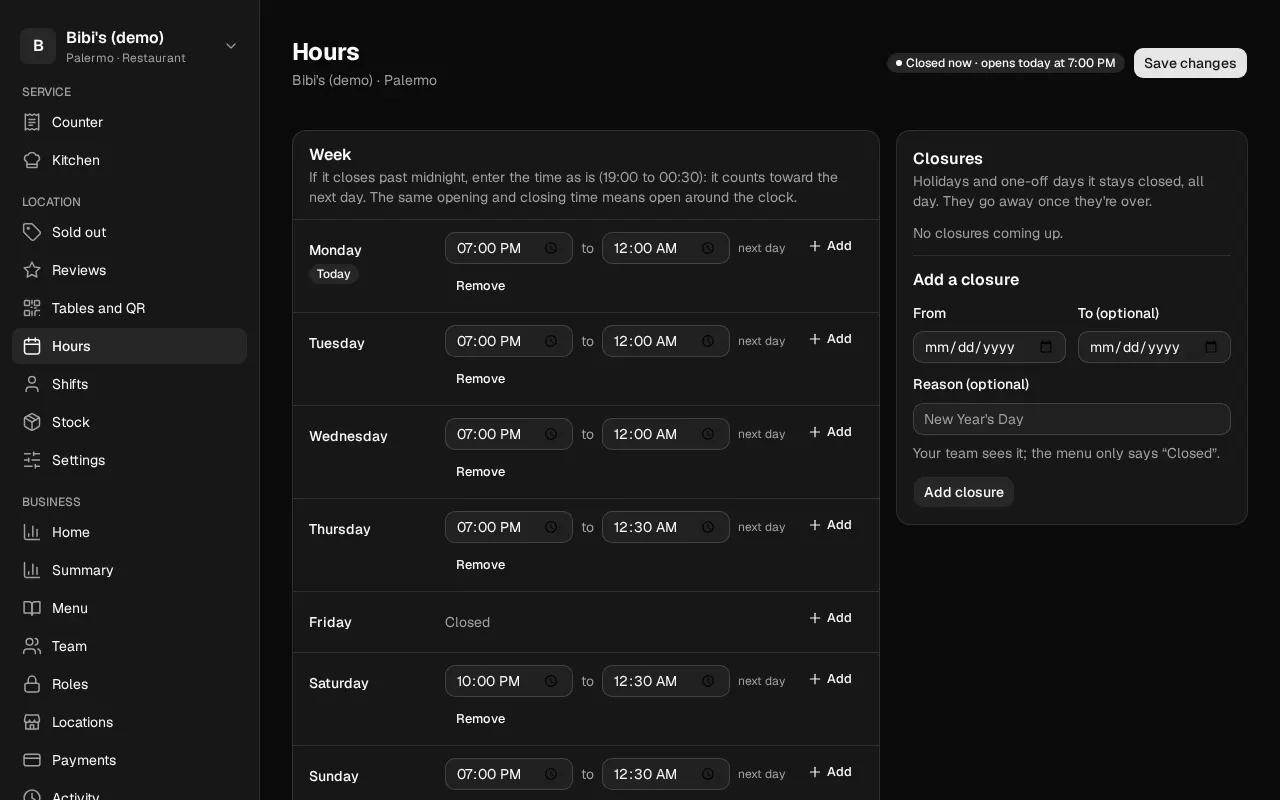
A location's hours are when it is open: the menu shows them, and no orders come in outside them. A location with no hours shows as closed and takes no orders. You open them from Hours in the left sidebar, with the location chosen at the top.
Who can: the owner, the admins, the accountant and the location's manager see them. The owner, the admins and the manager change them. An archived location shows its hours as they were, without changes.
At the top it says how the location is now, on its own clock: "Open now · until 00:30" or "Closed now · opens today at 19:00".
The week
Each day, Monday to Sunday, has its own hours. A day with none says Closed.
- On the day, select Add and enter when it opens and when it closes. A day can have up to four ranges, such as one at lunch and one in the evening.
- To take one out, select Remove beside it.
- Select Save changes, at the top right. The whole week is saved at once.
If it opens the same every day, fill in Monday and select Copy to the whole week, under its hours: it copies them to the other six days. Take out the days it's closed and select Save changes.
If it closes past midnight, enter the time as is: 19:00 to 00:30. "next day" shows beside it, and the range counts for the day it opens. The same opening and closing time means open around the clock.
A range you added and left empty is not saved.
Closures
Closures are holidays and one-off days the location stays closed, even if its week says it opens.
- In From, pick the day. For several days in a row, pick the last one in To (optional).
- If you like, write the Reason (optional), such as "New Year's Day". Your team sees it, customers don't.
- Select Add closure.
A closure takes out the ranges that open on that day. One that opened the day before and runs past midnight still stands. Closures go away by themselves once they're over; Remove takes one out sooner.
What each message means
| Message | What happened and what to do |
|---|---|
| This location has no hours yet: it shows as closed and takes no orders. | Enter its week and select Save hours. |
| Two ranges overlap. Check them, counting the ones past midnight. | Two ranges share some minutes. Watch the ones past midnight: they run into the next morning. |
| Fill in the opening and closing time of each range. | A range is missing one of its two times. Fill it in, or take it out with Remove. |
| Pick the date. | A closure needs at least the From day. |
| The end date must be the same as or after the start date, and a closure lasts less than a year. | Check From and To (optional). |
| That closure is already over. | Pick a date from today on. |
| This location already has 100 closures coming up. Remove one to add another. | A location has up to 100 closures that haven't happened yet. |