Product photos
You give each product a photo, as JPG, PNG or WebP up to 5 MB, and your customers see it on the digital menu.
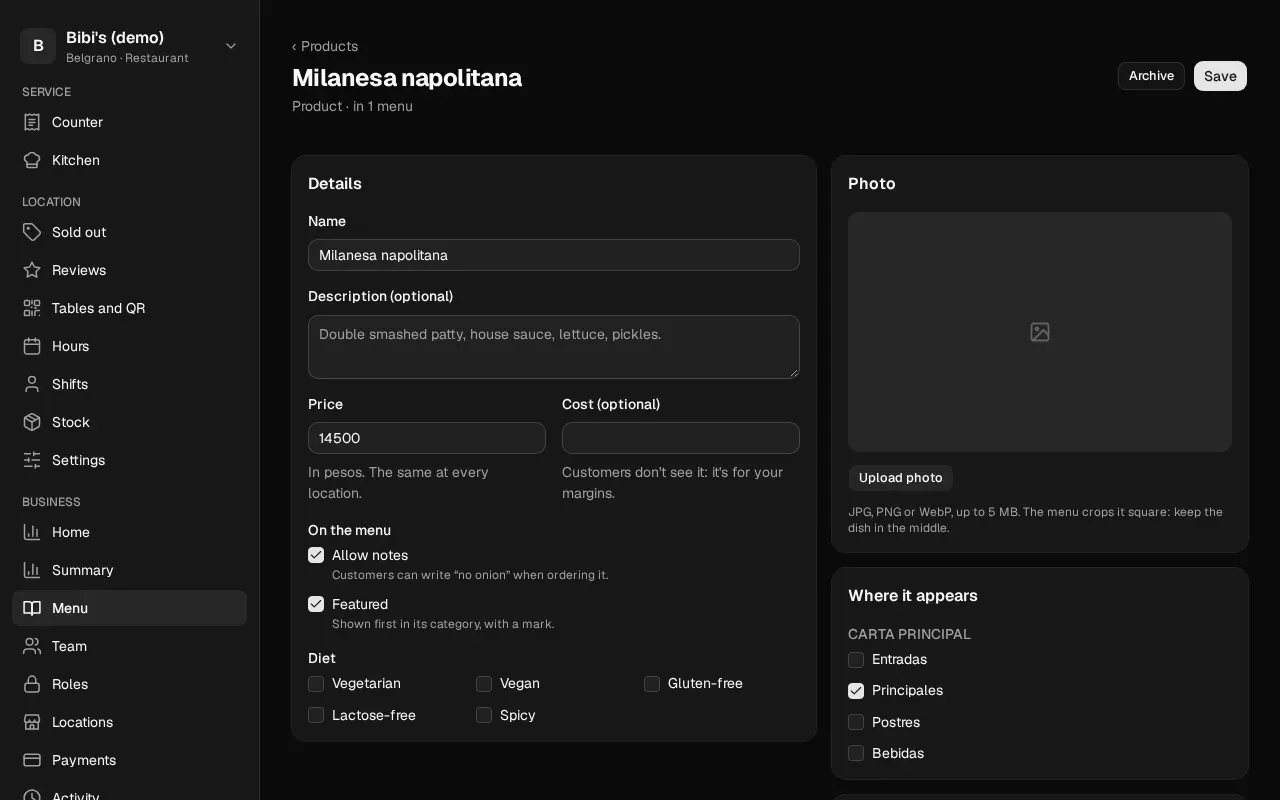
Each product can have a photo. It shows in the dashboard's lists and on the location's digital menu, the one your customers open with the table's QR code, once the location is published.
Who can: the owner, the admins and anyone with a custom role that has "Product catalog: Edit".
Upload a photo
- Open the product in Products.
- Under Photo, tap Upload photo and choose the photo: JPG, PNG or WebP, up to 5 MB. It uploads as soon as you choose it.
In the menu's list it's shown cropped square, and on the dish's page wider than it is tall: keep the dish in the middle. On an iPhone, the photo is converted to JPG automatically when you upload it.
To replace it, use Change photo. To take it off, Remove photo.
What each message means
| Message | What happened and what to do |
|---|---|
| The photo is over 5 MB | Make it smaller or choose another. |
| Upload the photo as JPG, PNG or WebP | Restoman doesn't accept other formats, such as HEIC or AVIF. |
| That file is not a photo | Choose a photo as JPG, PNG or WebP. |
| The photo is too large (over 25 megapixels) | Make it smaller and try again. |
| The photo is too tall and narrow | Crop it and try again. |
| We couldn't read that photo | Try another one. |
| Photos aren't available right now | Try again later. |
| We're processing other photos | Try again in a few seconds. |